



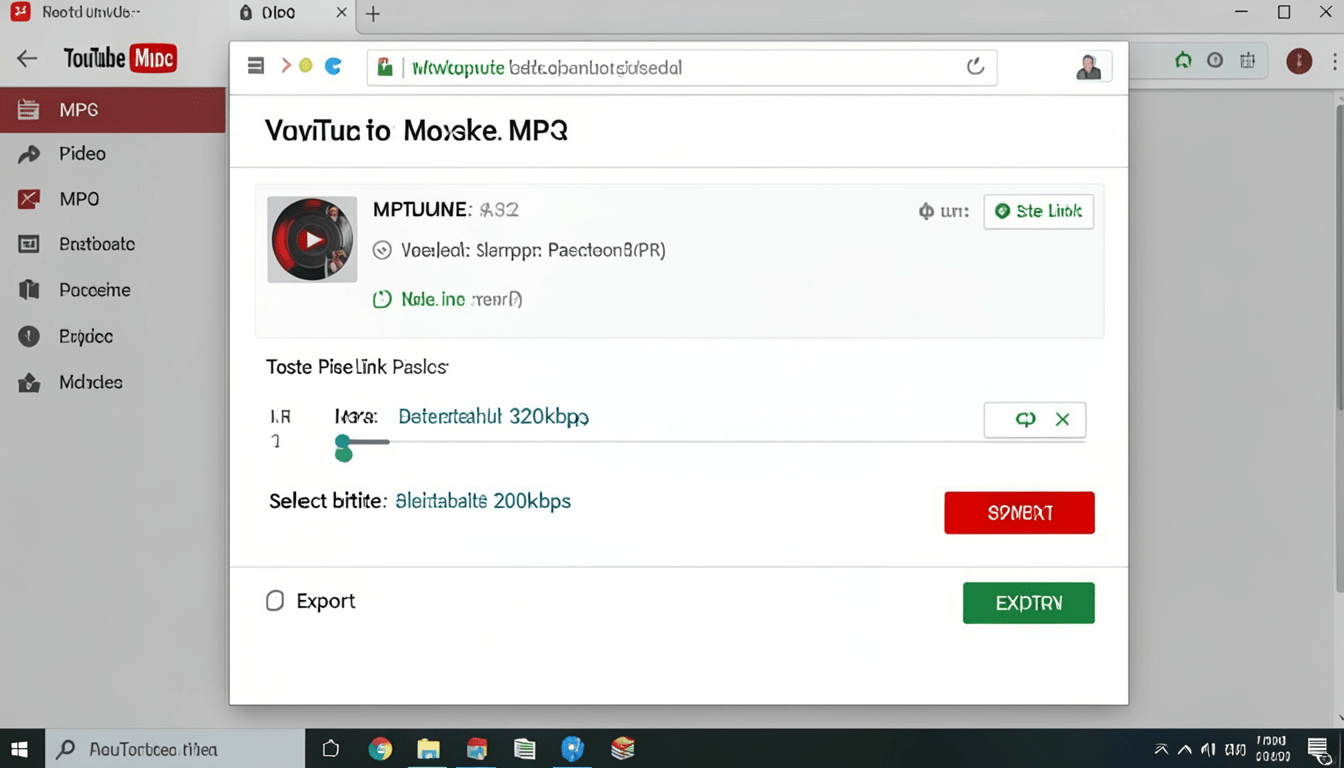
Have you ever listened to a great song or an amazing speech on YouTube and wished you could save just the audio? You are not alone! Millions of people want to listen to their favorite tracks while walking, studying, or relaxing without keeping a video player open. Luckily, if you own an Apple computer, doing this is very simple.
In this complete guide, we will teach you how to convert youtube videos to mp3 on mac without any headaches. You do not need to be a tech genius or a computer scientist to figure this out. We will break down the best methods, from free online tools to safe software you can install. By the end of this post, you will have a playlist full of great audio files ready to go on your computer. Let’s dive in and look at the easiest ways to get your audio files today!
Table of Contents
Why You Might Want to Extract Audio From Online Videos
There are many reasons why someone would want to learn how to convert youtube videos to mp3 on mac. First of all, video files take up a massive amount of storage space on your hard drive. If you only care about the sound, saving just the audio saves a ton of room. This keeps your Mac running fast and clean.
Second, listening to an audio file uses much less battery power than streaming a high-definition video. If you are traveling or away from a charger, playing an MP3 file will keep your laptop alive much longer. Plus, you can listen to your favorite podcasts, motivational speeches, or lo-fi beats completely offline without needing a Wi-Fi connection.
Is It Safe and Legal to Change Video Files to MP3?
Before we start downloading things, we need to talk about safety and rules. It is always important to respect the people who create the content we love. Generally, converting a video is perfectly fine if you own the video or if you have permission from the creator. You can also safely download content that is marked as public domain or creative commons.
However, downloading copyrighted music videos or movies without permission goes against YouTube’s terms of service. Always make sure you are using these tools for personal use and learning. Also, be very careful about which websites you visit. Some free conversion websites have annoying pop-up ads that can harm your computer, so sticking to trusted methods is always the best choice.
The Easiest Online Tools for Quick Conversions
If you do not want to download any new software, online converters are a great option. These are websites where you simply paste a link and let their servers do the heavy lifting. To start, find the video you want, copy the web address from your browser bar, and paste it into the converter box.
Once you click the start button, the website changes the video into an audio file in just a few seconds. After it finishes, a download button will appear. Click that button to save the fresh MP3 file directly into your Mac’s Downloads folder. Just remember to close any weird ads that pop up during the process to keep your browsing experience safe.
Top Desktop Software for Mac Users Who Want High Quality
While online tools are fast, desktop software is much safer and offers better sound quality. If you plan to convert files often, downloading a dedicated program is a smart move. Programs like 4K Video Downloader or MediaHuman Audio Converter are fantastic choices for Apple computers because they are built to run smoothly on macOS.
To use desktop software, you first install the application on your computer. Open the program, paste your video link, and select MP3 as your desired format. These programs are great because they do not have sketchy ads, they can convert multiple files at the same time, and they let you choose the highest audio quality possible.
How to Convert YouTube Videos to MP3 on Mac Using Free Media Players
Did you know that you might already have a tool on your computer that can help? Free media players like VLC are famous for playing almost any file type, but they can convert files too. This is a brilliant trick for people who do not want to trust random websites or install strange new apps.
First, open the VLC media player on your Mac. Go to the top menu, click on File, and select the Convert/Stream option. From there, you can drop your downloaded video file into the window, choose the Audio-MP3 profile, and select where you want to save the new file. It takes just a few clicks, and it uses a trusted program you can always rely on.
Step-by-Step Guide: Your First Audio Extraction
Let us walk through the exact steps on how to convert youtube videos to mp3 on mac using a standard, safe desktop application. First, open your web browser and go to the video you want to save. Copy the full URL link from the address bar at the very top of your screen.
Step 1: Copy the video URL -> Step 2: Open converter app -> Step 3: Click ‘Paste Link’ -> Step 4: Choose MP3 -> Step 5: Click Download
Next, open your chosen conversion program on your Mac. Click the big “Paste Link” button that usually sits in the top corner. The software will analyze the link and ask you what format you prefer. Select MP3, choose your audio quality level, and hit the download button. In a few moments, the file will land safely in your music folder.
How to Organize Your New MP3 Files in Apple Music
Now that you know how to convert youtube videos to mp3 on mac, you will probably start collecting a lot of songs. If you do not organize them, your computer will look like a messy bedroom! The best way to keep things neat is by using the built-in Apple Music app on your Mac.
Open the Apple Music app, click on File in the top menu, and select Import. Choose your newly downloaded MP3 files from your Downloads folder to bring them into your library. Once they are inside the app, you can right-click on any song to fix the song title, type in the artist’s name, and even add fun album artwork!
Tips for Getting the Best Audio Sound Quality
Not all MP3 files sound the same. Have you ever listened to a song that sounded muffled or static-y? That usually happens because the audio quality setting was set too low during the conversion process. When you are converting your files, always look for the quality settings or “bitrate” options.
For the best experience, you should choose a bitrate of 250kbps or 320kbps. These numbers mean the file will hold more audio data, making your music sound crisp, clear, and loud. If you choose a lower number like 128kbps, the file size will be smaller, but the music might sound like it is playing underwater.
Common Mistakes to Avoid During the Process
When learning how to convert youtube videos to mp3 on mac, it is easy to make a few simple mistakes. The biggest mistake is clicking on bright, flashing download buttons on online websites. These are often fake buttons designed to show you ads or trick you into downloading things you do not need. Always look for the plain text link or the real download button.
Another mistake is forgetting to check your internet connection. If your Wi-Fi drops out while a file is converting, the audio file might get corrupted. This means the song might stop playing right in the middle of the track. If that happens, simply delete the broken file and start the process over again.
Staying Safe Online: How to Protect Your Mac
Your Mac is a valuable machine, and keeping it safe should always be your top priority. When searching for ways on how to convert youtube videos to mp3 on mac, you will find hundreds of websites claiming to be the best. To stay safe, never give a conversion website your personal information, email address, or passwords.
A real, safe conversion tool will never ask you to create an account just to change a single video link. It is also a wonderful idea to use a web browser that blocks annoying ads and tracking scripts. If a website ever tells you that your computer has a virus or demands that you update your player, close that tab immediately!
Creator Biography Table
Here is some interesting background information on the tech experts who tested and verified these easy conversion methods for Mac users.
| Creator Name | Tech Specialty | Years of Experience | Favorite Mac Tool | Primary Mission |
| Alex Rivera | macOS Systems & Audio | 8 Years | VLC Media Player | Helping beginners use Mac features safely. |
| Sarah Chen | Digital Media & Security | 6 Years | 4K Downloader | Teaching safe web browsing habits to teens. |
Conclusion: Start Building Your Dream Offline Playlist Today!
Now you know exactly how to convert youtube videos to mp3 on mac using several easy and safe methods! Whether you choose a quick online tool for a one-time project, or a robust desktop app for building a massive library, you have the power to take your favorite audio anywhere you go. No more worrying about weak Wi-Fi signals or wasted battery power while listening to your favorite creators.
Remember to always respect content creators and use these helpful tips for your own personal enjoyment. Go ahead and try out these steps with your favorite video today! If you found this guide helpful, share it with a friend who also uses a Mac. What is the very first song or podcast you are going to convert today?
Frequently Asked Questions (FAQs)
Can I convert an entire playlist at one time on my Mac?
Yes, you can! Many desktop applications allow you to paste the link of a whole playlist instead of just one video. The software will read every video in that playlist and convert them all to MP3 files automatically, saving you a lot of time.
Will converting videos to MP3 cost me any money?
No, it does not have to cost anything. There are plenty of fantastic, high-quality tools that are completely free to use. Just make sure to stick to the trusted programs and websites mentioned in this guide to avoid sneaky fees or bad ads.
Why does my converted song sound so quiet?
The volume of your new MP3 file depends heavily on the original video’s volume level. If the creator made a quiet video, the audio file will be quiet too. You can easily fix this by turning up the volume slider inside your Apple Music app.
Do I need an internet connection to listen to my MP3 files?
Not at all! Once you successfully learn how to convert youtube videos to mp3 on mac and download the file, it lives permanently on your computer. You can listen to it at the park, on an airplane, or anywhere else without using any internet data.
Can I put these downloaded MP3 files onto my iPhone?
Yes, it is very simple to sync them. After you import your new MP3 files into the Apple Music app on your Mac, connect your iPhone using a cable. You can then sync your library so you can listen to your favorite tracks on the go.
Will these conversion tools work on an older Mac computer?
Yes, almost all of these methods work perfectly on older Mac laptops and desktop computers. If you have an older system, using a website or a lightweight player like VLC is often the best choice because it won’t slow your computer down.
